

AI Integration Quick Reference
AI Integration Quick Reference
Setup
AddonRecordingStarted and onRecordingStopped callbacks to your OngoingCallListener when building call settings. These fire for all participants when any user starts or stops recording.
- TypeScript
- JavaScript
- TypeScript
onRecordingStarted callback receives an event object — see the OngoingCallListener reference for the full shape.
The onRecordingStopped callback receives no arguments.
Settings for call recording
CallSettings Options
Programmatic Control
If you’re building a custom UI without the default layout, use these methods to control recording during an active call.Start Recording
You can use the startRecording() method to start call recording.- TypeScript
- JavaScript
Stop Recording
You can use the stopRecording() method to stop call recording.- TypeScript
- JavaScript
Downloading Recordings
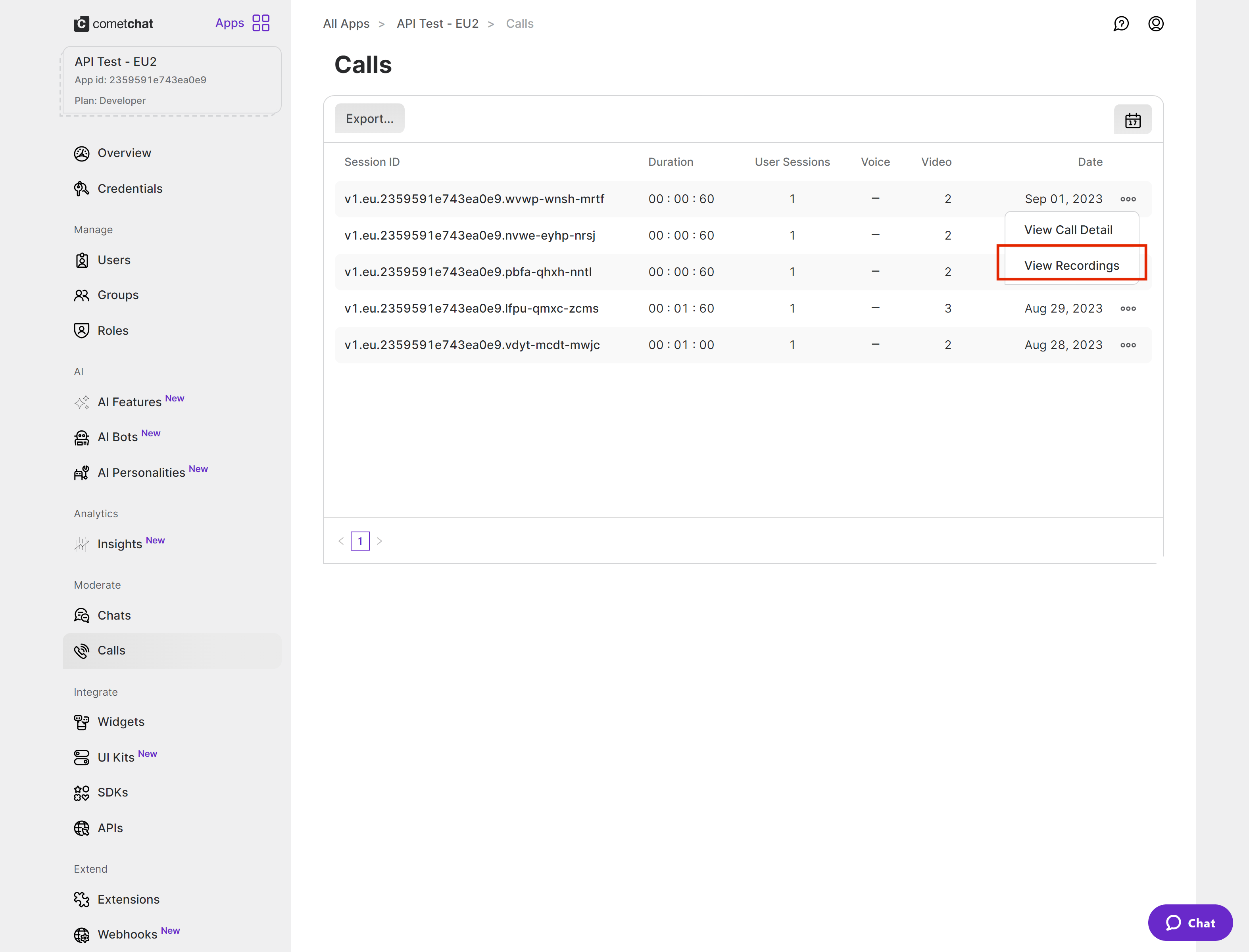
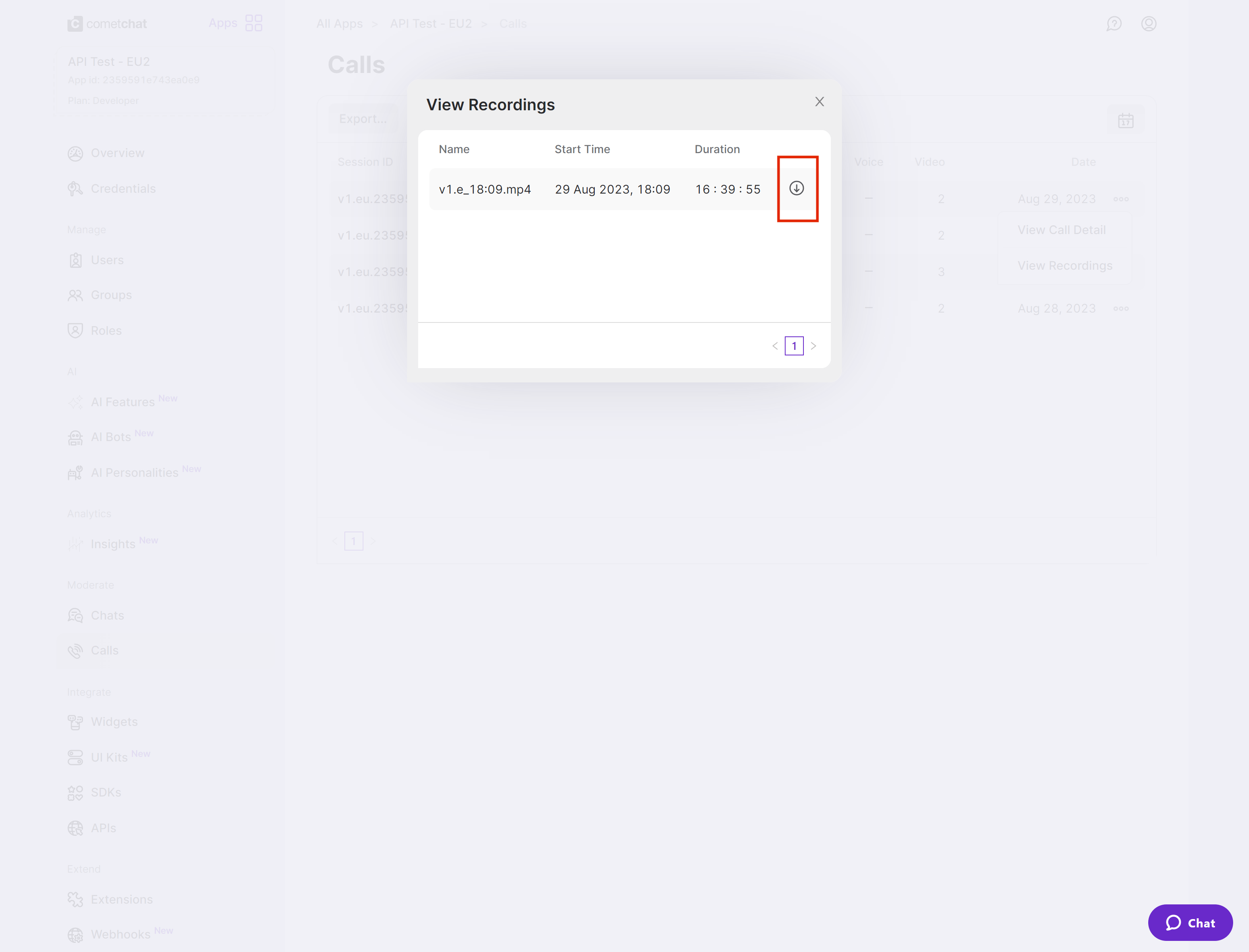
Call recordings are available on the CometChat Dashboard under the Calls section. Click the three-dot menu and select “View Recordings”.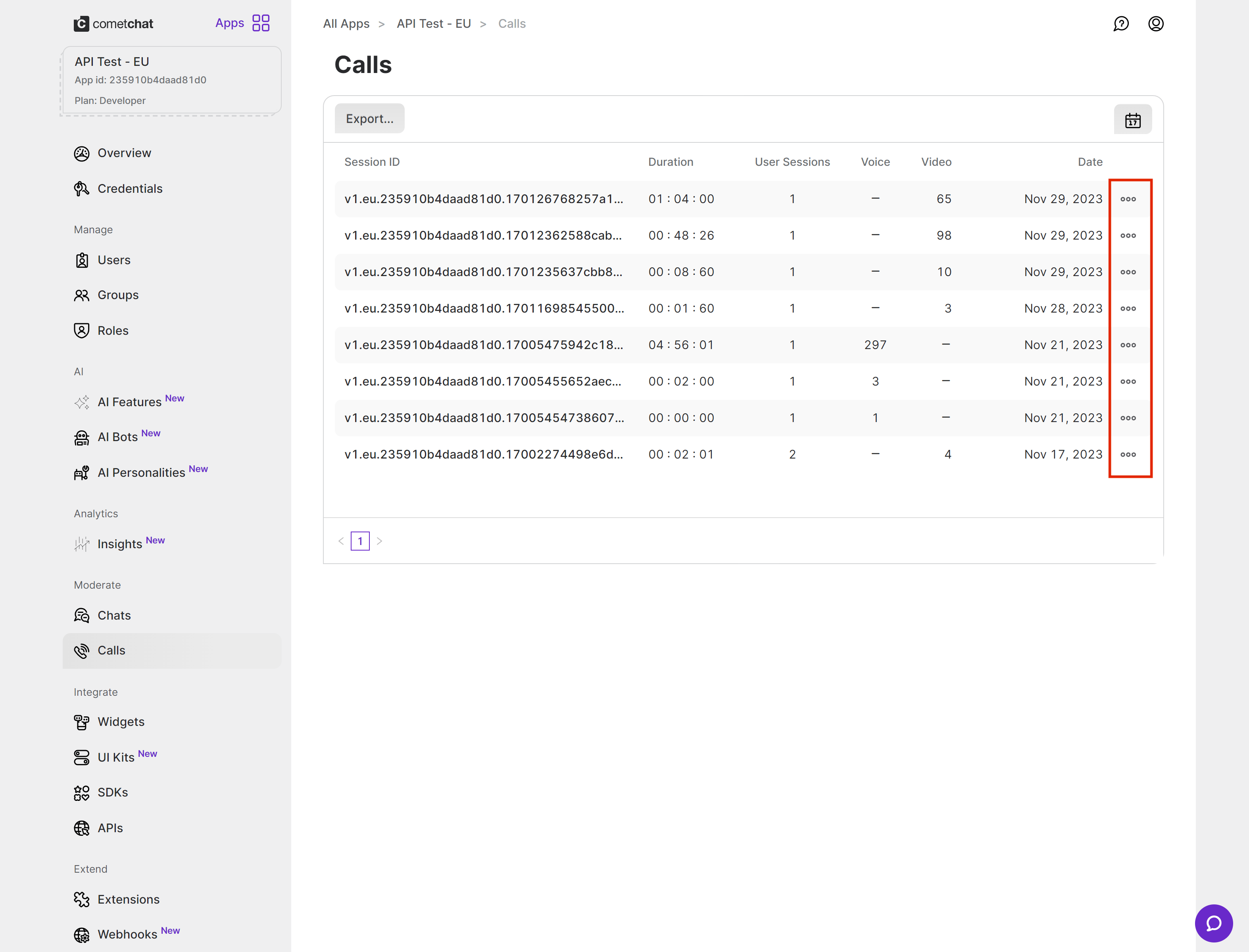
Next Steps
Default Calling
Implement ringing call flows with accept/reject functionality
Call Logs
Retrieve and display call history for users and groups