> ## Documentation Index
> Fetch the complete documentation index at: https://cometchat-22654f5b-docs-v6-beta2-flutter-uikit.mintlify.site/llms.txt
> Use this file to discover all available pages before exploring further.
# Recording (Beta)
> Add call recording to your React Native app with start/stop controls, recording listeners, and automatic recording on call start.
**Quick Reference** - Start and stop call recording:
```javascript theme={null}
// Start recording
CometChatCalls.startRecording();
// Stop recording
CometChatCalls.stopRecording();
// Or enable auto-recording via CallSettings
new CometChatCalls.CallSettingsBuilder()
.startRecordingOnCallStart(true)
.showRecordingButton(true)
.build();
```
**Available via:** SDK | UI Kits
## Overview
This section guides you through implementing call recording for voice and video calls.
Once you have decided to implement [Ringing](/sdk/react-native/default-call) or [Call Session](/sdk/react-native/direct-call) and followed the steps to implement them, a few additional listeners and methods will help you quickly implement call recording in your app.
You need to make changes in the `CometChatCalls.OngoingCallListener` constructor and add the required listeners for recording. Please make sure your callSettings is configured accordingly for [Ringing](/sdk/react-native/default-call) or [Call Session](/sdk/react-native/direct-call).
A basic example of how to make changes to implement recording:
```javascript theme={null}
// Add listeners onRecordingStarted and onRecordingStopped to the startSession method
const audioOnly = false;
const deafaultLayout = true;
const callListener = new CometChatCalls.OngoingCallListener({
onRecordingStarted: recordingStartedBy => {
// This event will work in JS SDK v3.0.8 & later.
console.log("Listener => onRecordingStarted:", recordingStartedBy);
},
onRecordingStopped: recordingStoppedBy => {
// This event will work in JS SDK v3.0.8 & later.
console.log("Listener => onRecordingStopped:", recordingStoppedBy);
},
});
const callSettings = new CometChatCalls.CallSettingsBuilder()
.enableDefaultLayout(deafaultLayout)
.setIsAudioOnlyCall(audioOnly)
.setCallEventListener(callListener)
.build();
render(){
return(
);
}
```
```typescript theme={null}
// Add listeners onRecordingStarted and onRecordingStopped to the startCall method
const audioOnly = false;
const deafaultLayout = true;
const callListener = new CometChatCalls.OngoingCallListener({
onRecordingStarted: recordingStartedBy => {
// This event will work in JS SDK v3.0.8 & later.
console.log("Listener => onRecordingStarted:", recordingStartedBy);
},
onRecordingStopped: recordingStoppedBy => {
// This event will work in JS SDK v3.0.8 & later.
console.log("Listener => onRecordingStopped:", recordingStoppedBy);
},
});
const callSettings = new CometChatCalls.CallSettingsBuilder()
.enableDefaultLayout(deafaultLayout)
.setIsAudioOnlyCall(audioOnly)
.setCallEventListener(callListener)
.build();
render(){
return(
);
}
```
**On Event** — `onRecordingStarted` returns information about the user who started the recording:
**RecordingStartedBy Object:**
| Parameter | Type | Description | Sample Value |
| -------------- | ------ | --------------------------------------------------- | ----------------------------------------------------------------------- |
| `uid` | string | Unique identifier of the user who started recording | `"cometchat-uid-7"` |
| `name` | string | Display name of the user | `"Henry Marino"` |
| `avatar` | string | URL to user's avatar image | `"https://assets.cometchat.io/sampleapp/v2/users/cometchat-uid-7.webp"` |
| `recordId` | string | Unique identifier for this recording session | `"noujausedimwfhwl"` |
| `id` | string | Internal session participant ID | `"042d0440"` |
| `isLocalUser` | string | Whether this is the local user (as string) | `"true"` |
| `isVideoMuted` | string | Whether user's video is muted (as string) | `"true"` |
| `isAudioMuted` | string | Whether user's audio is muted (as string) | `"false"` |
**On Event** — `onRecordingStopped` returns information about the user who stopped the recording:
**RecordingStoppedBy Object:**
| Parameter | Type | Description | Sample Value |
| -------------- | ------ | --------------------------------------------------- | ----------------------------------------------------------------------- |
| `uid` | string | Unique identifier of the user who stopped recording | `"cometchat-uid-7"` |
| `name` | string | Display name of the user | `"Henry Marino"` |
| `avatar` | string | URL to user's avatar image | `"https://assets.cometchat.io/sampleapp/v2/users/cometchat-uid-7.webp"` |
| `id` | string | Internal session participant ID | `"042d0440"` |
| `isLocalUser` | string | Whether this is the local user (as string) | `"true"` |
| `isVideoMuted` | string | Whether user's video is muted (as string) | `"true"` |
| `isAudioMuted` | string | Whether user's audio is muted (as string) | `"false"` |
## Settings for Call Recording
The `CallSettings` class allows you to customise the overall calling experience. The properties for the call/conference can be set using the `CallSettingsBuilder` class. This will eventually give you an object of the `CallSettings` class which you can pass to the `CometChatCalls.Component` to start the call.
The options available for recording of calls are:
| Setting | Description |
| --------------------------------------------------------------- | ------------------------------------------------------------------------------------------------------------------------------------------------------------------------------------ |
| `showRecordingButton(showRecordingButton: boolean)` | If set to `true` it displays the Recording button in the button Layout. if set to `false` it hides the Recording button in the button Layout. **Default value = false** |
| `startRecordingOnCallStart(startRecordingOnCallStart: boolean)` | If set to `true` call recording will start as soon as the call is started. if set to `false` call recording will not start as soon as the call is started. **Default value = false** |
For the use case where you wish to align your own custom buttons and not use the default layout provided by CometChat, you can embed the buttons in your layout and use the below methods to perform the corresponding operations:
### Start Recording
You can use the `startRecording()` method to start call recording.
```javascript theme={null}
CometChatCalls.startRecording();
```
```typescript theme={null}
CometChatCalls.startRecording();
```
### Stop Recording
You can use the `stopRecording()` method to stop call recording.
```javascript theme={null}
CometChatCalls.stopRecording();
```
```typescript theme={null}
CometChatCalls.stopRecording();
```
## Downloading Recording
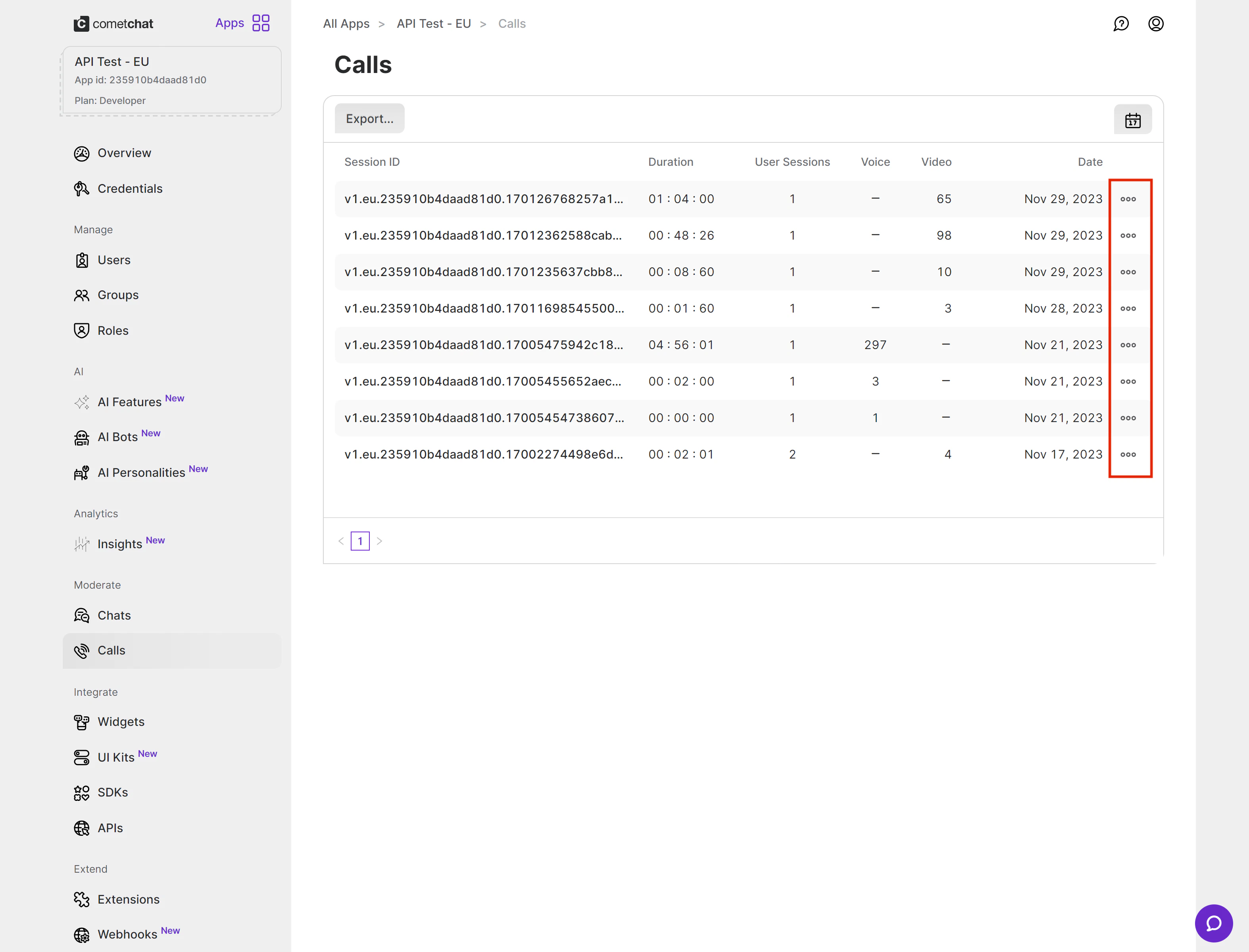
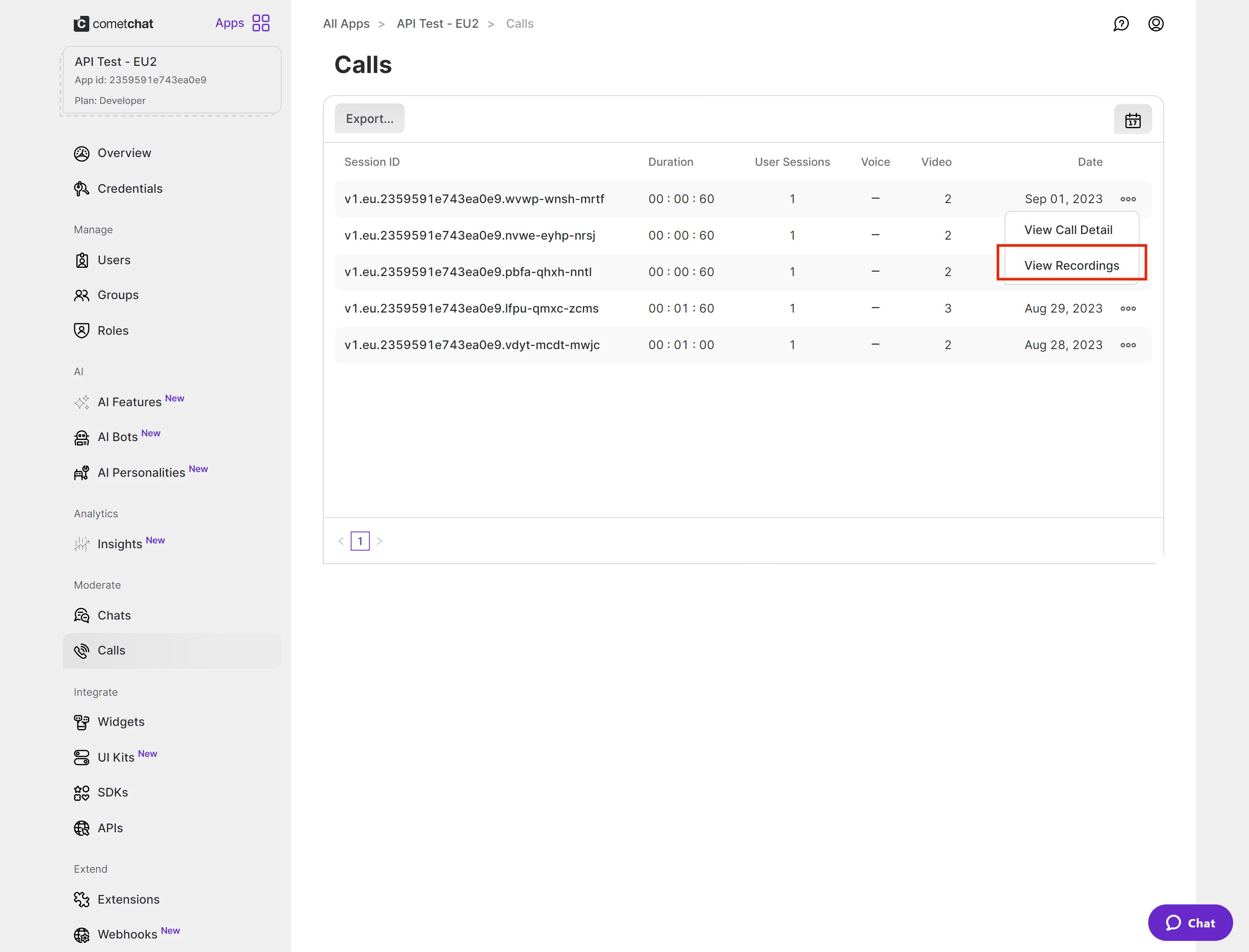
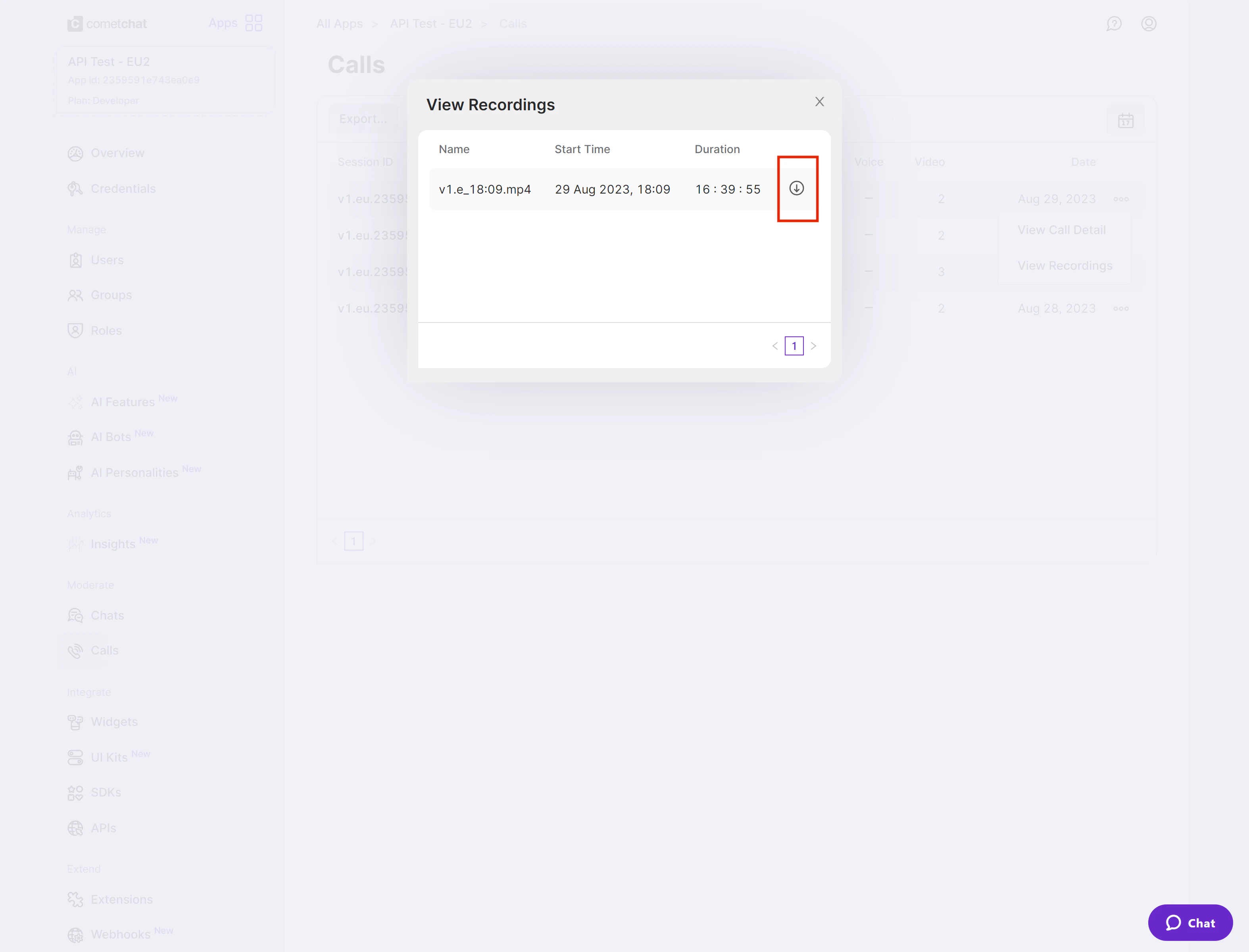
Currently, the call recordings are available on the [CometChat Dashboard](https://app.cometchat.com) under the Calls Section. You can refer to the below screenshot.
 ## Best Practices
The ongoing call component automatically displays a recording badge when recording starts — you don't need to build or control this UI. Use the `onRecordingStarted` and `onRecordingStopped` listeners if you need to track recording state in your app logic (e.g., logging or analytics).
If your app requires all calls to be recorded (e.g., for compliance or audit purposes), enable `startRecordingOnCallStart(true)` in your `CallSettingsBuilder` to ensure no calls are missed.
If you're using a custom layout (`enableDefaultLayout(false)`), track the recording state using `onRecordingStarted` and `onRecordingStopped` listeners to toggle your custom recording button's appearance.
## Troubleshooting
Ensure `showRecordingButton(true)` is set in your `CallSettingsBuilder`. The recording button is hidden by default (`false`). Also verify that `enableDefaultLayout(true)` is set, as the button is part of the default layout.
These listeners require JS SDK v3.0.8 or later. Verify your SDK version. Also ensure the listeners are registered in the `OngoingCallListener` before the call session starts.
Recordings may take a few minutes to process after the call ends. Check the Calls section in the [CometChat Dashboard](https://app.cometchat.com). If still missing, verify that recording was actually started (check `onRecordingStarted` callback).
***
## Next Steps
Start and manage call sessions with full configuration options
Implement a complete calling experience with incoming and outgoing call UI
Customize the main video container and participant tiles
Retrieve and display call history including duration and participants
## Best Practices
The ongoing call component automatically displays a recording badge when recording starts — you don't need to build or control this UI. Use the `onRecordingStarted` and `onRecordingStopped` listeners if you need to track recording state in your app logic (e.g., logging or analytics).
If your app requires all calls to be recorded (e.g., for compliance or audit purposes), enable `startRecordingOnCallStart(true)` in your `CallSettingsBuilder` to ensure no calls are missed.
If you're using a custom layout (`enableDefaultLayout(false)`), track the recording state using `onRecordingStarted` and `onRecordingStopped` listeners to toggle your custom recording button's appearance.
## Troubleshooting
Ensure `showRecordingButton(true)` is set in your `CallSettingsBuilder`. The recording button is hidden by default (`false`). Also verify that `enableDefaultLayout(true)` is set, as the button is part of the default layout.
These listeners require JS SDK v3.0.8 or later. Verify your SDK version. Also ensure the listeners are registered in the `OngoingCallListener` before the call session starts.
Recordings may take a few minutes to process after the call ends. Check the Calls section in the [CometChat Dashboard](https://app.cometchat.com). If still missing, verify that recording was actually started (check `onRecordingStarted` callback).
***
## Next Steps
Start and manage call sessions with full configuration options
Implement a complete calling experience with incoming and outgoing call UI
Customize the main video container and participant tiles
Retrieve and display call history including duration and participants